
AI for Engineering Knowledge Management
How to use PTC Creo's Generative Design Extension (GDX) and topology optimization for part lightweighting. Setup steps, constraints, and practical tips.
·
⏱
8 min read

Michelle Ben-David
Michelle Ben-David is a mechanical engineer and Technion graduate. She served in an IDF elite technology and intelligence unit, where she developed multidisciplinary systems integrating mechanics, electronics, and advanced algorithms. Her engineering background spans robotics, medical devices, and automotive systems.
BOTTOM LINE
Creo's generative design tools, both GDX and topology optimization in Creo Simulate, are production-capable and well-integrated into PTC's engineering ecosystem. Success depends on accurate study setup: realistic loads, properly scoped design spaces, and manufacturing constraints included from the start. For teams using Creo and Windchill, Leo AI adds an intelligence layer that surfaces the engineering knowledge, material data, and design history you need to set up better studies and make better decisions with the results.
PTC has been quieter than Autodesk or Siemens when it comes to marketing generative design. You will not find as many flashy demo videos or conference keynotes about Creo's capabilities in this space. But Creo's Generative Design Extension, known as GDX, and its Topology Optimization capabilities within Creo Simulation are both production-grade tools that serious engineering organizations are using to lighten parts, reduce material costs, and improve structural performance.
The challenge with Creo's generative tools is that they sit in a more traditional engineering workflow. If you have used Fusion 360's generative design, Creo's approach will feel more deliberate, more engineer-controlled, and honestly a bit more demanding in terms of setup. That is not a criticism. For engineers working on safety-critical components, defense hardware, or high-reliability industrial equipment, the extra control and traceability that Creo provides is exactly what they need.
This guide walks through both GDX and Creo Simulate's topology optimization, explains how they differ, when to use which, and how to set up studies that produce results worth putting into production.
GDX vs. Topology Optimization: Which Creo Tool for Which Job
Creo gives you two distinct paths for algorithmic part design, and understanding the difference is essential before you start.
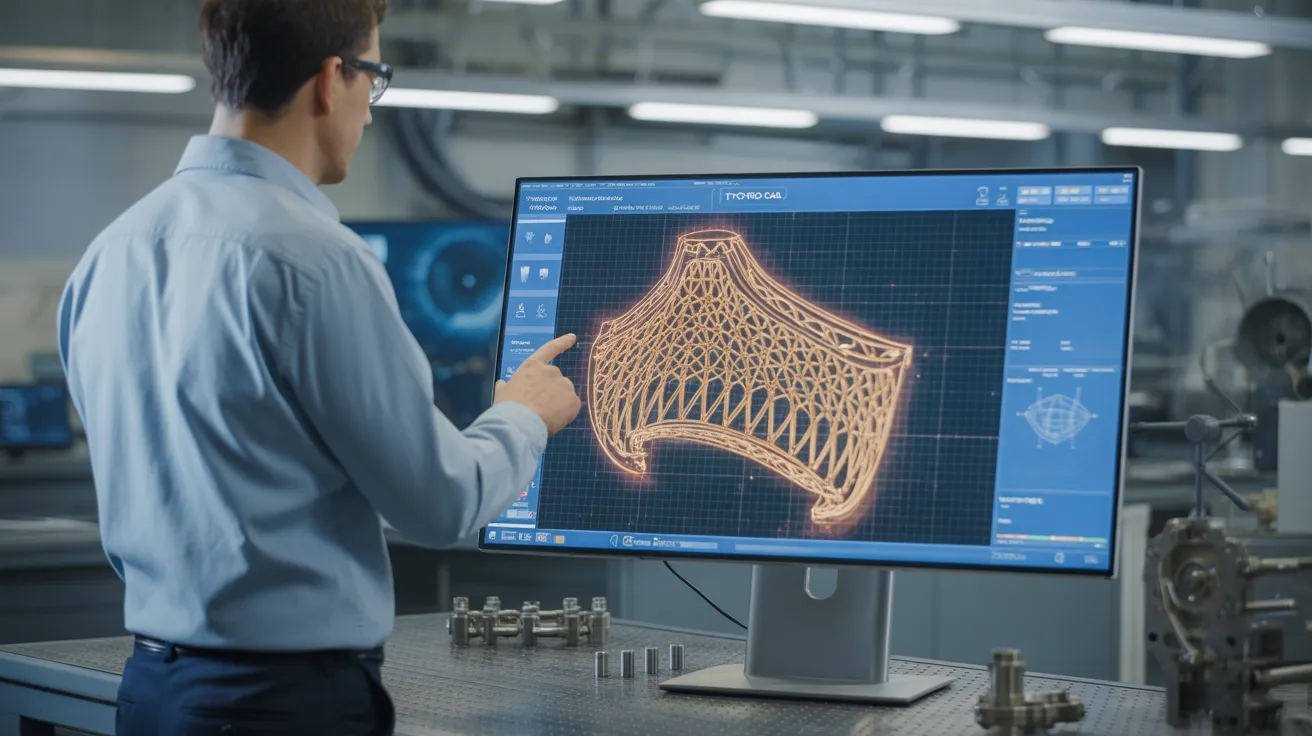
Creo Generative Design Extension (GDX) is PTC's cloud-based generative engine. Like Fusion 360's generative design, it explores the design space broadly, generating multiple outcome variants that satisfy your structural requirements. GDX runs computations in PTC's cloud infrastructure and returns results to your Creo session. It excels at exploring fundamentally new part shapes and can produce organic, topology-optimized geometry that you would never arrive at through manual modeling.
Creo Simulate Topology Optimization is the traditional, locally-computed approach. You define a design domain within Creo Simulate, specify loads, constraints, and an objective (typically minimize mass), and the solver removes material to create an optimized density distribution. This is the workhorse approach that has been in FEA tools for decades, and Creo's implementation is mature and reliable.
For most users starting out, topology optimization in Creo Simulate is the easier entry point. The workflow integrates directly with Creo Simulate, which many Creo users already have access to. GDX requires a separate license and cloud connectivity, but it offers broader exploration with multiple manufacturing constraints and outcome variants.
If your goal is lightweighting a specific existing component with well-understood loading, topology optimization is the faster path. If you want to explore fundamentally different design approaches for a new component, GDX gives you more exploration capability.
IN PRACTICE
Unlike general AI, Leo uses a Large Mechanical Model trained on 1M+ technical sources - standards, textbooks, datasheets. It also provides citations, so we don't have to guess whether a material property or tolerance is correct.
"Unlike general AI, Leo uses a Large Mechanical Model trained on 1M+ technical sources - standards, textbooks, datasheets. It also provides citations, so we don't have to guess whether a material property or tolerance is correct."
- Dorian G., AI Engineer
Setting Up a GDX Study: Design Space and Interfaces
To start a GDX study in Creo, you work in the Generative Design environment. The fundamental inputs mirror what other generative tools need, but Creo's approach to defining them is more structured.
Your design space is defined as a Creo part. Model a solid body representing the maximum envelope the part can occupy. Account for neighboring components, clearance requirements, and assembly constraints. In Creo, you can reference your assembly context directly when building the design space, which is a significant advantage over tools that require you to recreate context from memory.
Define preserved regions on the design space. These are the interface surfaces: bolt holes, mounting pads, bearing seats, mating faces. In GDX, you select faces and add them as preserved geometry. The algorithm will maintain these regions exactly as defined and generate structure to connect them.
GDX also supports starting shapes and seed geometry. If you have an existing part that you want to optimize rather than redesign from scratch, you can provide it as a seed. The algorithm uses it as a starting point, which can speed up convergence and produce results that are closer to your current design intent.
Define obstacle regions for any volumes where material cannot exist. Cable routes, neighboring components, clearance zones, tool access requirements. Being thorough with obstacle definitions prevents the algorithm from generating solutions that look great in isolation but cannot physically fit in your assembly.
Defining Structural Requirements and Load Cases
GDX accepts structural loads and boundary conditions similar to Creo Simulate. The precision of your load definition is the single most important factor in getting useful results.
Start with boundary conditions. Fixed supports go on faces where the part is physically attached to structure. If the part is bolted, define fixed constraints on the bolt contact faces. If it sits on a surface, use a planar constraint. Be honest about what is truly fixed and what has some compliance. Over-constraining is one of the most common errors in generative studies and leads to artificially stiff results with too little material.
Apply loads. Forces, moments, pressures, distributed loads. Use your actual service loads, not inflated safety factors. The optimization algorithm needs accurate loading to find the right geometry. If you need a 2x safety factor, specify that as an objective constraint, not by doubling your input loads.
For parts experiencing multiple independent load conditions, define each as a separate load case. A mounting bracket that sees gravity loading during normal operation, vibration loading during transport, and an impact load during a specific event needs all three cases defined. The algorithm will find geometry satisfying all cases simultaneously.
Creo's advantage here is the tight integration with its simulation environment. If you have already validated your loads through Creo Simulate analysis, you can carry those load definitions directly into the GDX study rather than re-entering everything from scratch.
Manufacturing Constraints in GDX
GDX supports several manufacturing constraint types that keep the output producible. This is critical because unconstrained generative output looks impressive but is often impossible to manufacture through conventional methods.
For additive manufacturing, you can set minimum feature thickness, maximum overhang angle (to reduce support material needs), and build direction. If you know your part will be printed on a specific machine with specific capabilities, match these parameters to your printer.
For subtractive manufacturing, GDX can constrain the output to tool-accessible geometry. Specify the tool approach direction(s) and the algorithm avoids generating features that cannot be reached by a cutter.
For casting, you can define draw directions and parting planes. The algorithm ensures the result can be extracted from a mold without undercuts in the specified direction.
Set minimum and maximum member sizes. A minimum thickness of 2-3mm prevents the algorithm from generating features that are too fragile to handle or too thin to manufacture reliably. A maximum thickness can be useful if you want to encourage the algorithm toward lattice-like or ribbed structures.
My practical advice: always specify manufacturing constraints even if you plan to 3D print the first prototype. Parts have a way of transitioning to machined or cast production, and it is much easier to include those constraints from the beginning than to re-optimize later.
Keep Reading: Generative Design Constraints: Setting Up Manufacturing Methods That Actually Work · Generative Design in NX: How Siemens Engineers Use AI for Part Optimization · Generative Design in Fusion 360: Complete Setup and Workflow Tutorial
Converting Results to Parametric Creo Geometry
This is where Creo has a distinct advantage over some competing platforms. Because you are working within the Creo ecosystem, the path from optimization result to parametric production model is more integrated.
For GDX results, Creo provides tools to convert the mesh output into Creo geometry. You can use the result directly as a reference body while you model the production part, overlaying the organic shape and tracing its structural paths with standard Creo features. This hybrid approach, using the generative result as a structural roadmap and then parametrically modeling a manufacturable interpretation, is the standard production workflow.
For topology optimization results from Creo Simulate, the density plot serves as your design guide. Most engineers use it as a visual map: where the density is high, keep material. Where it is low, remove material. Then build a new parametric model that follows this map using conventional Creo modeling features.
PTC has been improving the mesh-to-solid conversion tools in recent Creo releases. For simpler results, automatic conversion can produce a usable BRep solid. For complex organic shapes, manual remodeling remains faster and gives you better parametric control.
Either way, the final production model should be a fully parametric Creo part with proper feature definitions, dimensions, and drawing-ready geometry. The generative or topology optimization result is a design input, not the final deliverable.
FAQ
Smarter Design Starts with Knowledge
AI-powered answers for Creo engineers
Leo AI connects to Windchill and gives your team instant access to standards, past designs, and validated calculations. Better inputs for every design decision. Start free.
Schedule a Demo →

#1 New AI Software Globally - G2 2026

Enterprise-grade security

Trusted by world-class engineering teams